
Preview and create pick-up orders.
Opportunity
Effective order management is critical for providing excellent customer service. By having the ability to preview and customize pick-up orders before finalizing, businesses can provide a more flexible and transparent experience for their customers.
The endpoints discussed here enable businesses to preview orders before creating them, allowing for modifications and providing a detailed breakdown of the order (including taxes, discounts, and more). This guide covers the process of previewing an order and creating a pick-up order within the IndicaOnline system.
Flow
Order Preview
To preview a pick-up order, use the Preview pick up order endpoint:
https://api.indicaonline.com/open_api/v2.3/orders/pick-up/preview
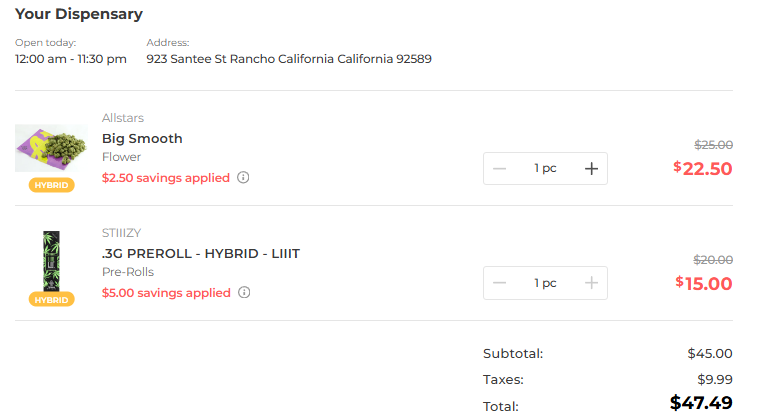
This endpoint allows you to view all relevant information about the order before confirming it, including customer details, pricing (with taxes and discounts), and the ability to adjust item quantities or cancel the order.
Specify the required Body parameters:
office_id: The ID of the office where the order is being processed.customer_id: The ID of the customer placing the order.items: A list of items in the order, with detailed pricing and discount information.
Each Order Item requires the following fields:
product_id: The unique ID of the product.price: The price per gram based on the selected weight increment.quantity: The number of units ordered.charge_as: The selected charge measurement unit
You can also apply your own custom discounts:
Order Item Discount:
name: The name of the discount applied to the entire order.amount: The discount amount applied to the entire cart.method: The discount application method.
Cart Discount:
name: The name of the discount applied to the entire order.amount: The discount amount applied to the entire cart.method: The discount application method.
Once the body is filled out with the required parameters, send the request to receive a preview of the order details.
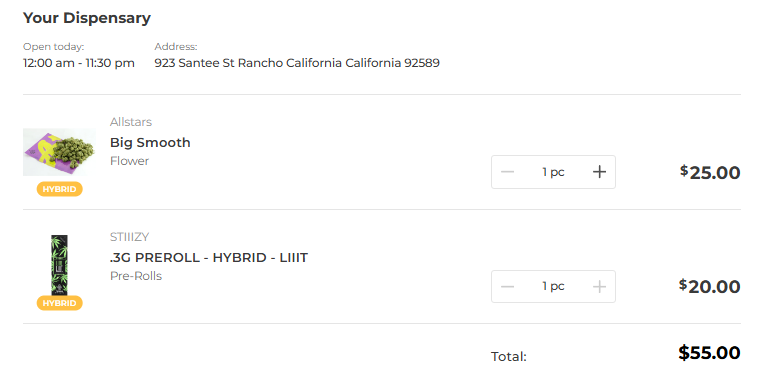
Before the Preview Pick Up Order endpoint is triggered, an order placed by your customer may look something like that:
After the Preview Pick Up Order endpoint is triggered, the order data is updated:
Order Creation
To preview a pick-up order, use the Preview pick up order endpoint:
https://apidocs.indicaonline.com/reference/createpickuporder
This endpoint allows third parties to submit order creation requests, providing all necessary order details, such as customer information, items, pricing, discounts, and other relevant fields. Once the request is made, the order is processed within the IndicaOnline system.
Specify the required Body parameters:
office_id: The ID of the office where the order is being processed.customer_id: The ID of the customer placing the order.items: A list of items in the order, with detailed pricing and discount information.
Each Order Item requires the following fields:
product_id: The unique ID of the product.price: The price per gram based on the selected weight increment.quantity: The number of units ordered.charge_as: The selected charge measurement unit
You can also apply your own custom discounts:
Order Item Discount:
name: The name of the discount applied to the entire order.amount: The discount amount applied to the entire cart.method: The discount application method.
Cart Discount:
name: The name of the discount applied to the entire order.amount: The discount amount applied to the entire cart.method: The discount application method.
Once the order request is filled out with all required parameters, send the request to the endpoint to create the order, for example:
{
  "office_id": 12345,
  "customer_id": 67890,
  "items": [
    {
      "product_id": 11111,
      "price": 10.50,
      "quantity": "1",
      "charge_as": "gram",
      "discount": {
        "name": "Holiday Discount",
        "amount": 2.00,
        "method": "currency"
      }
    }
  ]
}
As a result, IndicaOnline will create an order and return a 201 response code, with the following response body:
{
  "id": 123,
  "number": "ORD-1001",
  "office_id": 12345,
  "type": "pickup",
  "source": "open_api",
  "customer_id": 67890,
  "items": [
    {
      "product_id": 11111,
      "price": 10.50,
      "quantity": "1",
      "charge_as": "gram",
      "discount": {
        "name": "Holiday Discount",
        "amount": 2.00,
        "method": "currency"
      }
    }
  ],
  "subtotal": 8.50,
  "total": 10.50,
  "order_status": "pending",
  "payment_status": "unpaid",
  "payment_methods": ["credit_card"]
}
As well, on IndicaOnline Web you will be able to see the created order under Inventory > Orders:

Updated about 1 year ago